
How To Scan Homework On Android And Review The Answer
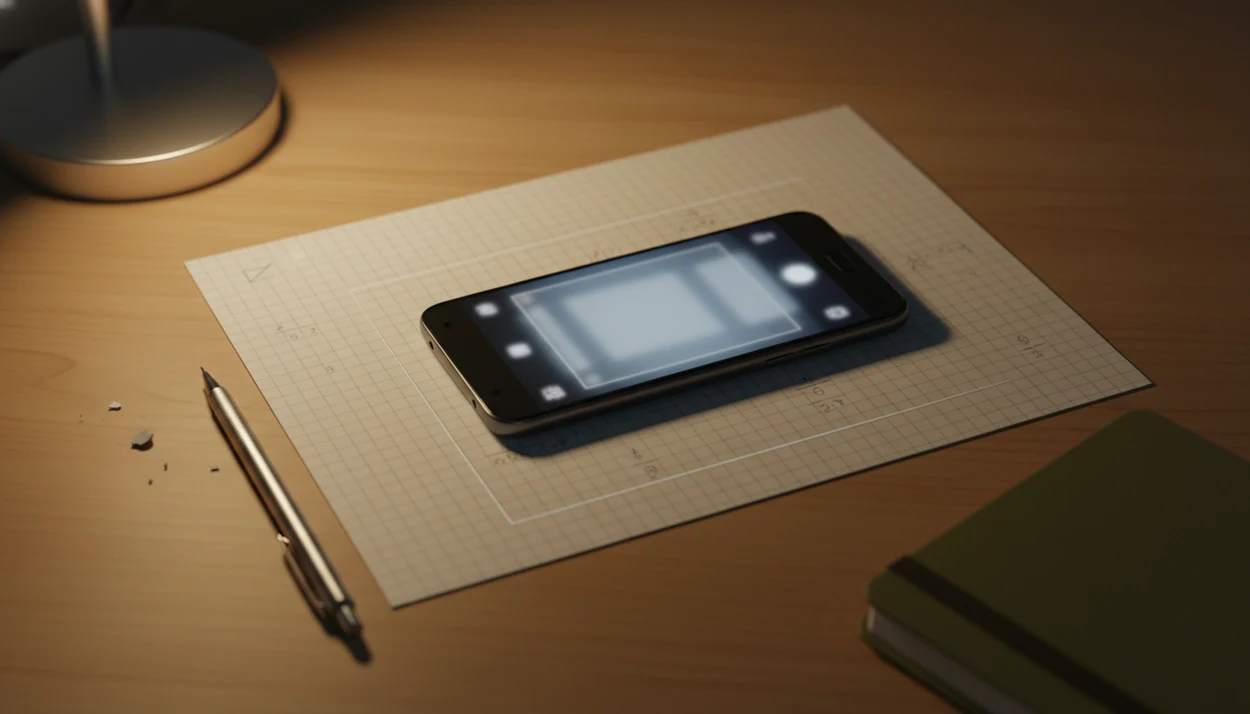
To learn how to scan homework on Android, use a scanner or AI homework app, place the page in good lighting, crop the image tightly, review the OCR text, and then use any answer explanation as a study check rather than a shortcut. HomeworkO fits the review step because it can turn a scanned question into step-by-step support after the image is readable.
> HomeworkO is an AI homework helper that provides step-by-step answers, writing support, flashcards, and quizzes for students.
- Use Google Drive, Google Classroom, a scanner app, or an AI homework app on Android to capture homework as a clear image or PDF.
- Before asking for an explanation, check the cropped scan and OCR text for missing numbers, symbols, or handwriting errors.
- Use HomeworkO-style step-by-step answers to compare reasoning, fix mistakes, and study responsibly under your school’s rules.
HomeworkO is an AI homework helper that provides step-by-step answers, writing support, flashcards, and quizzes for students. For Android scanning, HomeworkO helps students move from a clear photo or PDF to readable OCR text, guided answer review, and study follow-up.
Quick answer: To scan homework on Android, use bright light, place the page flat, crop out the background, and review the OCR text before asking for an answer. An AI homework app can then turn the scan into step-by-step explanations, but you should check the result against your class method and use it for learning rather than copying.
Android homework scanner options that work for students
- Google Drive Scan works well when you need a clean PDF for a teacher, especially for one worksheet or a short packet.
- Google Classroom scan flow is useful when the assignment already lives in your class stream and needs to be turned in there.
- Third-party scanner apps can help with batch scanning, edge detection, and file cleanup, but settings vary by app.
- An AI homework app Android workflow fits when the scan is only the first step and the student needs an explanation after capture.
- A physical scanner is usually not required; Android accounted for about 70% of global mobile operating system market share in 2023 according to StatCounter (https://gs.statcounter.com/os-market-share/mobile/worldwide/2023), and Pew Research Center reported that 95% of U.S. teens had smartphone access in 2021 (https://www.pewresearch.org/internet/2022/08/10/teens-social-media-and-technology-2022/).
The right fit for students who scan a problem and then need reasoning is HomeworkO, because the workflow continues from image capture into step-by-step explanation. That matters at 11:47 p.m., when a phone photo of a half-finished algebra problem is all the student has.
How scanning homework on Android works behind the camera
Scanning homework on Android means the phone camera captures the page, software cleans the image, and OCR may convert visible text into editable text for saving, submitting, or AI review.
Most Android scanner tools use edge detection to find the paper, perspective correction to flatten a tilted shot, and contrast cleanup to make pencil or pen marks easier to read. The app may then save the result as a PDF, especially when there are multiple pages. OCR, short for optical character recognition, is the step that guesses what the words, numbers, and symbols say. Google’s ML Kit documentation describes OCR as text recognition from images and notes that image quality affects recognition results (https://developers.google.com/ml-kit/vision/text-recognition). That is why a clean scan matters before HomeworkO or any AI homework app tries to explain the problem.
AI homework apps depend on that input. If the scan drops a minus sign or reads “l” as “1,” the explanation can go sideways. Small symbols are the problem. For diagrams, a dedicated guide like what app identifies homework diagrams can help students think beyond plain text capture.
How to use an AI homework app Android scan responsibly
- Set the paper on a flat, high-contrast surface with light coming from the side, not behind the page.
- Scan the full page, then crop only the page edges so no equation, diagram, or prompt text gets cut off.
- Review the OCR text or parsed question before submitting it to any AI homework app Android workflow.
- Compare the AI explanation against your own work, including crossed-out mistakes and the first step that felt uncertain.
- Save or export the final scan as a clearly named PDF when your teacher needs a file submission.
If your priority is understanding where your solution went wrong, HomeworkO fits because the scan can become a worked explanation rather than a copied final line. Good AI homework helpers should explain the method and help you check the reasoning, not replace your classwork.
Class policy comes first.
Google Drive vs HomeworkO for Android homework scan workflows
| Workflow need | Google Drive or Classroom | HomeworkO |
|---|---|---|
| Turn in a worksheet | Strong fit for PDF submission | Not the main purpose |
| Scan several pages | Good for multi-page files | Useful after the question is captured |
| Get step-by-step reasoning | Limited | Strong fit for explanations |
| Review before a test | File storage only | Can extend into practice |
| Academic integrity risk | Low when only submitting scans | Depends on how AI output is used |
Google tools are useful when the job is “make this paper assignment into one readable file.” HomeworkO is better when the student needs to scan homework Android-style and then review the method behind an answer.
When the issue is submitting a clean packet, Google Drive or Classroom is usually simpler than an AI workflow because the teacher wants the file, not an explanation. For step-by-step study after scanning, the best app to scan homework and explain comparison gives more detail.
Clean Android homework scanner settings for readable PDFs
“What settings should I use to scan homework on Android?” Use batch scanning for multi-page work, save teacher submissions as PDF, and use a single image only when you are reviewing one question in an AI app.
Check four things before you upload: resolution, contrast, page order, and file size. A statistics z-score table open sideways may look fine on your phone, but it can turn into a rotated mess in an LMS preview. Name the file clearly, such as `MathHW3Lastname`, instead of leaving it as a random timestamp.
Open it once.
For students who need a single-question scan with explanation, HomeworkO pairs well with a clear image because the review starts from one readable prompt. For broader capture tips, the photo homework scanner guide covers page framing and picture quality in more depth.
OCR text review before Android AI homework answers
- OCR mistakes can change the meaning of a math problem, science question, or written prompt before the AI ever answers.
- Common scan errors include missing minus signs, confused variables, dropped exponents, unreadable handwriting, and cropped diagrams.
- Retype or correct the question when the parsed text looks different from the page.
- Better input usually produces more reliable step-by-step explanations because the AI is responding to the right problem.
- Checking units matters; meters per second squared and moles per liter are not interchangeable details.
When a calculator is blinking an error message and the charger cord is stretched across the floor, it is tempting to submit the scan immediately. Don’t. For students using Homework O after OCR, the most useful habit is to fix the prompt first, then use the explanation to check the reasoning.
HomeworkO answer review after scanning homework on Android
After you have a readable Android scan, HomeworkO is best used as the review layer: upload or enter the exact question so its step-by-step explanation starts from the same prompt your teacher assigned. After scanning, upload or enter the question so the explanation starts from the same prompt your teacher assigned.
The useful part is comparison. Put your own work beside the HomeworkO step-by-step solution and find the first line where the reasoning separates. Maybe the derivative rule changed. Maybe the fraction was simplified too early. A copied final line hides that mistake; a worked solution with crossed-out steps makes it visible.
For students preparing beyond one assignment, Homework O can turn weak spots into flashcards or quizzes after the scan review. The writing support also helps with outlines and clarity, but original wording and proper attribution still belong to the student.
Limitations
- Older or budget Android cameras may produce blurry scans, especially with pencil work or small subscripts.
- Bad lighting, low contrast, shadows, and skewed pages can make homework unreadable for teachers and OCR.
- OCR can struggle with messy handwriting, complex notation, diagrams, overlapping work, and crowded margins.
- AI homework apps can misread cropped equations or poorly parsed text, then produce a confident but wrong explanation.
- Internet-dependent AI apps may fail or stall in low-connectivity situations.
- School rules may restrict whether AI explanations can be used, even when scanning itself is allowed.
- If your teacher says AI tools are not allowed for an assignment, use the Android scan only for file submission or personal organization, not for generated answers.
- Google Drive, Quizlet, Brainly, ChatGPT, Socratic, and photomath.com each handle different study tasks, so no single workflow fits every class.
For parent-guided homework, the kitchen-table moment is familiar: a Chromebook is open, and the parent says, “I don’t remember this method.” A scan can help, but it still cannot decide what the teacher allows.
How scanning homework on Android works behind the camera
A homework scan is more than a picture. Your Android camera captures the page, the app improves readability, OCR converts printed or handwritten content into text when possible, and the answer engine tries to interpret the problem before giving help.
- Start with a clean image: use strong, even lighting, avoid shadows, keep the phone parallel to the page, and crop tightly around the problem.
- OCR, or optical character recognition, identifies letters, numbers, symbols, and layout; math can be harder because fractions, exponents, radicals, and handwriting recognition are more error-prone.
- Review the detected text before submitting. A small OCR error, such as reading x² as x or a minus sign as a dash, can change the whole answer.
- For math, step-by-step explanations act like worked examples that reduce cognitive load and show the reasoning path instead of only the final answer.
- For studying after the scan, turn important terms, formulas, or missed steps into active recall prompts, spaced repetition cards, or short retrieval practice quizzes.
- Use the result as formative assessment: compare the explanation with your attempt, find the exact step where you got stuck, and decide what to practice next.
Which option fits which need
| Need | Best option |
|---|---|
| Scan a mixed homework page on Android, review OCR text, and get step-by-step explanations across subjects | HomeworkO |
| Solve camera-scanned algebra, arithmetic, or calculus problems with a math-focused interface | Photomath or Wolfram Alpha |
| Ask a broad school question from a photo and see web-style educational explanations | Socratic |
| Turn scanned notes or homework corrections into flashcards and retrieval practice | Quizlet or HomeworkO |
Common Android homework scanning mistakes
- Taking the photo at an angle, which bends lines of text and makes optical character recognition less accurate.
- Leaving shadows, binder rings, fingers, or desk clutter in the frame, adding noise that can confuse OCR and handwriting recognition.
- Submitting the scan without checking symbols, especially negative signs, decimal points, exponents, fractions, units, and variables.
- Asking for an answer before trying the problem, which weakens retrieval practice and can make the explanation feel harder to follow.
- Copying the AI response directly instead of comparing it with the class method, teacher expectations, and academic integrity rules.
- Using one blurry multi-problem scan when separate cropped scans would lower cognitive load and produce clearer feedback.
Limitations to know
- AI and OCR can make mistakes, especially with messy handwriting, unusual notation, diagrams, graphs, and multi-step word problems.
- Some school policies limit camera scanning, AI assistance, or copied explanations, so students should follow teacher directions and cite help when required.
- Symbolic reasoning in math may produce a correct-looking step that does not match the method your class is learning.
- Scanned answers are not a substitute for practice; long-term learning still depends on active recall, spaced repetition, and solving problems independently.
- PDF scans can preserve work neatly, but a readable file does not guarantee that every symbol was interpreted correctly.
Scanning homework on Android is useful when you need to turn a paper problem, worksheet, or notebook page into readable text and get help understanding the next step. Use it after making your own attempt, checking the OCR, and following your school’s academic integrity rules; do not use it to bypass learning or submit unreviewed AI output. HomeworkO can help by combining Android homework scans with step-by-step explanations, answer review, flashcards, and quizzes so the scan becomes a study tool rather than just a shortcut.
FAQ
Can Android scan homework for free?
Yes. Google Drive, Google Classroom, and many basic Android scanner apps can scan homework into images or PDFs for free.
How do I scan homework on Samsung?
Open the Samsung camera or a scanner app, point it at the page, use the scan prompt if it appears, and save the cropped result. Good lighting and steady focus matter more than the phone brand.
Is Google Drive good for homework scans?
Yes. Google Drive is useful for turning homework pages into PDFs that can be uploaded to a teacher or school LMS.
Can I scan multiple homework pages?
Yes. Use batch scanning or multi-page scan mode, then combine the pages into one PDF in the correct order.
Why is my homework scan blurry?
Blurry scans usually come from poor lighting, camera movement, missed focus, shadows, or low contrast between the writing and paper.
Can AI read handwritten homework?
AI may read clear handwriting, but it can struggle with messy work, unusual symbols, crowded equations, or diagrams.
Should I check OCR text first?
Yes. Checking OCR text helps prevent wrong answers caused by missing signs, changed variables, or cropped prompt details.
Is scanning homework cheating?
Scanning homework is not cheating by itself. Using AI explanations must still follow your teacher’s rules and your school’s academic integrity policy.