Homework scanner app guide for photos, worksheets and screenshots
A homework scanner app can save time, but only if the photo is good and you check the result. Here is how scanning really works and where it breaks.


- Free to download
- iPhone, iPad & Android
- Snap, scan or type
- Steps shown, not just answers
Short answer. A homework scanner app uses your phone camera to photograph a problem, reads the text with OCR, detects the subject, and returns a step-by-step explanation. It works best with one clear, well-lit problem per photo. Always check the result against your textbook or notes, because scanned answers can be wrong.
How a homework scanner app reads your photo
A homework scanner app does three jobs in a row, and each one can go wrong in its own way.
First the camera captures an image. Phone cameras are good, but they struggle with glare, shadows and tilted pages. The app can only work with the pixels you give it.
Second comes OCR, short for optical character recognition. This step turns the shapes in the photo into text and symbols. Printed text is easy. A fraction bar, an exponent or a square root sign is harder, because the position of a mark carries meaning. A small 2 raised next to x is a square. The same 2 sitting on the line is a plain 2.
Third is subject detection. HomeworkO reads the recognized text and decides whether you handed it algebra, a chemistry equation or a history prompt. That choice shapes the style of the explanation. A balancing question gets atom counts. A word problem gets a list of known values first.
After that, the answer engine, which is a large language model, writes a step-by-step explanation. In the app this takes seconds.
The weak link is almost always step two. If the text is read wrongly, you get a confident solution to a question you never asked. I have seen a 3 read as an 8 turn a clean answer into a messy one. That is why checking what the app understood matters before you read the solution.
What scans well and what does not
Not every page is equal. After watching students use scanner apps, I sort homework into three piles. Easy, risky and better typed.
| Type of homework | How it scans | What to do |
|---|---|---|
| Printed single equation | Very reliable | Scan as is |
| Printed word problem | Reliable if the page is flat | Crop to one problem |
| Neat handwriting | Usually fine | Check numbers and signs |
| Fast or slanted handwriting | Frequent misreads | Type the question instead |
| Multi-part question (a, b, c) | Parts get mixed or skipped | Scan one part at a time |
| Graphs and diagrams | Labels read, meaning may not | Add a typed description |
| Screenshot of an online quiz | Clean text, good results | Crop out the sidebar |
Multi-part questions deserve a special warning. Part (b) often depends on the answer from part (a), and a photo of the whole page hides that link. Scan part (a), then type the result when you ask about part (b).
Handwriting is the other trap. Your own writing looks clear to you because you know what it says. The app does not have that advantage.
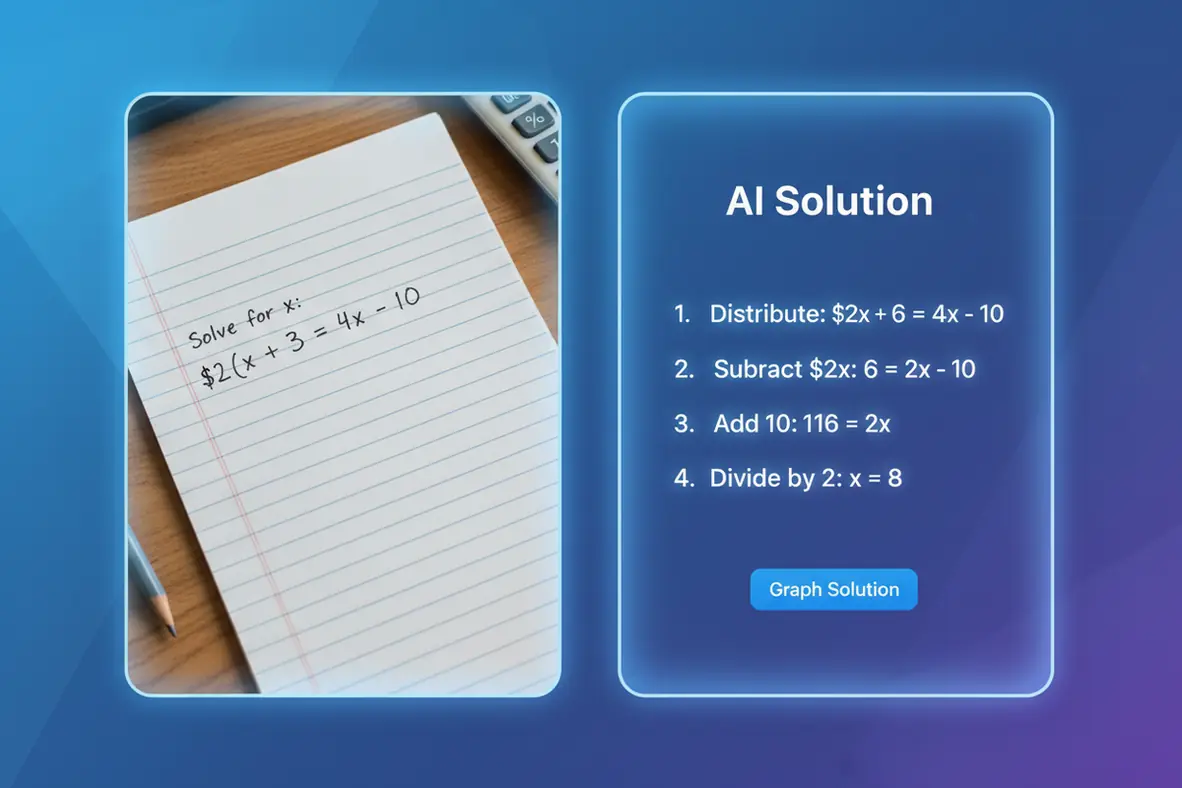
How to scan a worksheet properly
Most bad answers start with a bad photo. This routine takes about fifteen seconds and fixes most problems.
- Put the worksheet on a flat desk near a window or under a lamp. Avoid holding it in your hand.
- Move your own shadow out of the frame. Phones cast a shadow right over the text if you hold them straight above the page.
- Hold the phone parallel to the page so the lines look straight, not slanted.
- Frame one problem only. Crop out the problem above and below it, including any neighboring numbers.
- Tap to focus on the text, then take the photo.
- Look at the recognized text before you accept it. Check minus signs, decimal points, exponents and fraction layout.
- If something is off, retake the photo or fix the text by typing.
Two small habits help a lot. Turn the flash off, because it makes a bright white patch on glossy paper. And if a page curls near the spine of a textbook, press it flat with your other hand and keep your fingers outside the problem.
One problem per photo is the single rule I would keep if I could keep only one. A full page of ten questions gives the app ten chances to lose track of what you want.
Scanning diagrams, formulas and units
Diagrams, formulas and units are where scanning gets interesting, because the meaning sits in small marks.
With formulas, check that powers and subscripts survived. v squared and v2 are different quantities, and so are x1 and x with a 1 beside it. With units, make sure m/s, m/s squared and km/h are intact. A lost unit changes the whole problem.
With diagrams, the app can read printed labels such as 30 degrees or 5 cm, but it may not understand which side a label belongs to. If the picture matters, type one line of context with the scan, for example that the 5 cm side is opposite the angle.
Here is a worked example. Suppose the scan reads, A car accelerates from rest to 20 m/s in 8 s. How far does it travel? A correct explanation looks like this.
a = (20 - 0) / 8 = 2.5 m/s^2
d = 0.5 * a * t^2
d = 0.5 * 2.5 * 8^2
d = 0.5 * 2.5 * 64 = 80 m
You can verify it a second way. Average speed is (0 + 20) / 2 = 10 m/s, and 10 m/s times 8 s is 80 m. Two routes, same answer, and the unit is meters, which fits a distance.
How to check a scanned answer
A scanned answer is a draft, not a verdict. AI can be wrong on ambiguous or very complex problems, so I ask students to run a short check every time.
Start with the question the app understood. If it restated your problem, compare it to the paper. Take a simple case. You wrote 5x + 3 = 28 and the app read 5x + 8 = 28. The first gives 5x = 25 and x = 5. The second gives 5x = 20 and x = 4. Both solutions look tidy, and only one matches your homework.
Then use these checks.
- Plug the answer back into the original problem and see if both sides match.
- Look at the units and ask if the size makes sense. A person running at 400 m/s should make you stop.
- Compare the method with the one in your textbook or class notes. If your teacher uses a specific formula, the steps should match it.
- Redo one middle step by hand. You do not have to redo everything.
- For history, literature and essays, check names, dates and quotes against your course material.
If a step makes no sense, ask a follow-up question in the app and name the exact step. That usually works better than rescanning the whole page.
Privacy of homework photos
A photo of homework can show more than the problem. Margins carry names, class codes, teacher comments and sometimes a desk, a face or a address on an envelope.
The HomeworkO store listing says questions are processed to generate solutions, and that they are not sold or shared. That is the stated policy, and it is worth reading the full privacy details in the store before you install anything, as you should with any app.
Beyond the policy, you control what goes into the frame. Here is what I tell students.
- Crop the photo to the problem so your name and student number stay out of it.
- Cover a graded header or a teacher note with a sticky note before you scan.
- Keep faces, screens and other papers out of the background.
- Do not scan tests that your school says must be completed without help.
That last point is about honesty, not technology. Using the app to understand a method on practice problems is one thing. Handing in answers you cannot explain is another, and it usually shows up on the next exam.
When typing beats scanning, and where to get the app
Scanning is fast, but typing wins in several situations. Choose typing when your handwriting is rushed, when a question has several linked parts, when the page is creased or glossy, and when the problem is a short sentence like define osmosis. Typing also wins when you want something that is not a problem at all. Because the answer engine is a language model, you can type requests such as make a 10-question quiz on chapter 4 or outline an essay on the causes of the French Revolution. There is nothing to scan for those.
My own rule is simple. If the text is printed and clean, scan it. If it is messy or needs context, type it, and add a line of explanation.
On an iPhone or iPad with iOS 17 or later, you can get the homework scanner app for iPhone from the App Store. If you use an Android phone, look for the homework scanner app on Android on Google Play. The app is called AI Homework Helper: Homeworko, it is free to download, and the publisher is ATN Marketing SRL.
Once installed, you can snap a photo, scan, or type, and use the AI flashcards to review what you just learned.
Frequently Asked Questions
Put the page flat in good light, frame one problem per photo, and read the recognized text before accepting it. Then check the answer by plugging it back into the original problem.
Yes. In the HomeworkO app you snap a photo, it identifies the subject, and it returns a step-by-step explanation in seconds. Clear, well-lit photos work best, and you should still verify the result against your course material.
No. The solver only works inside the mobile app for iPhone, iPad and Android. This website provides information and download links.
Sometimes. Neat, well-spaced handwriting usually reads fine, but fast or slanted writing gets misread. If the preview text is wrong, retake the photo or type the question.
It can read printed labels, formulas and units, but it may misjudge which label belongs to which part of a diagram. Add a typed line describing the picture, and confirm that exponents and units survived the scan.
No. Answers can be wrong on ambiguous or very complex problems, and a misread character can change the whole question. Check by substitution, sensible units and your textbook method.
The HomeworkO store listing says questions are processed to generate solutions and are not sold or shared. You can also protect yourself by cropping out names, faces and background papers before you scan.